QR Cards
One scan to share your contact or groups. They never go out-of-date.
Everyone who signs in to Openbook with their mobile number gets a QR Card, a code of their own. Fill it in with your job title, company and every way to reach you. Someone scans it to request your contact, you say yes, and it’s in their Contacts, changing whenever you change it. And it looks like you.
Already use Openbook? Open your own card in Contacts and tap Share QR Card.
1. Share it.They scan your code and request your contact. Nothing reaches them until you say yes. How sharing works
2. Fill it in.Your job title, company, more numbers and emails, birthday and a note, each for everyone or only people you share with. What you can add
3. Always up to date.Change anything on your card once, and it changes on every phone you shared it with. How it stays current
4. Make it yours.Your color and your photo, which fills your card with your code small in its corner, then Silver and Gold as people join. How it looks
Share it
Show it. They scan. You say yes.
Your own card is in Contacts on your phone, with your QR Card as its photo. A scan requests your contact, and nothing reaches anyone until you say yes.
Show your code, or text it.Tap Share QR Card on your own card. Show the code to scan, or text the link, which shows your code and name before they tap.
They scan, and request.Your QR Card opens on their phone. They request your contact, and can request to join the groups you offer too.
You say yes.Until then their phone shows only “Maya Chen”, marked Requested, with no number. Share it, and your name, number and details are in their Contacts.
A scan requests. It doesn’t take.Say no, and they get nothing: no number, no details. They see only your name, and your job title and company if you show them to everyone.
Pick who can request.Allow requests from Everyone, Only Contacts or Nobody, on Manage Account. A scan from someone you don’t let in never reaches you.
Your groups, too.Your code can offer the groups you invite people to, so one scan can request your contact and to join them too.
Fill it in
Fill in who you are.
Tap My QR Card on your own card. Add your job title and company, more numbers and emails, an address, a website, your birthday, your profiles and a note about you, and choose who sees each.
Everyone who has your card.Your job title, company, website, profiles and note: for people in your groups, people you know and people you share your contact with.
Or only people you share with.More numbers and emails, your address and your birthday start here: only the people you said yes to see them. Change either for any detail. People who have your number also get your birthday’s month and day, unless you turn off Share your birthday.
Never copied.Your details show on their cards of you as their phones sync, so a change, or taking one off, reaches everyone at once. Nobody who only has your number sees any of it unless you have theirs too.
Always up to date
Change it once. Everyone has it.
Everyone you shared your contact with gets your new name, number or details at their phone’s next sync. No more texting everyone you know.
Your number.Get a new one, and it changes on their phones at the next sync.
Your name and details, too.Change your name, job or email on My QR Card, and their card of you follows. If they edited your card, their edit stays.
Only who you choose.Your number goes only to people you said yes to, and each detail to everyone who has your card or only them.
Make it yours
Make it look like you.
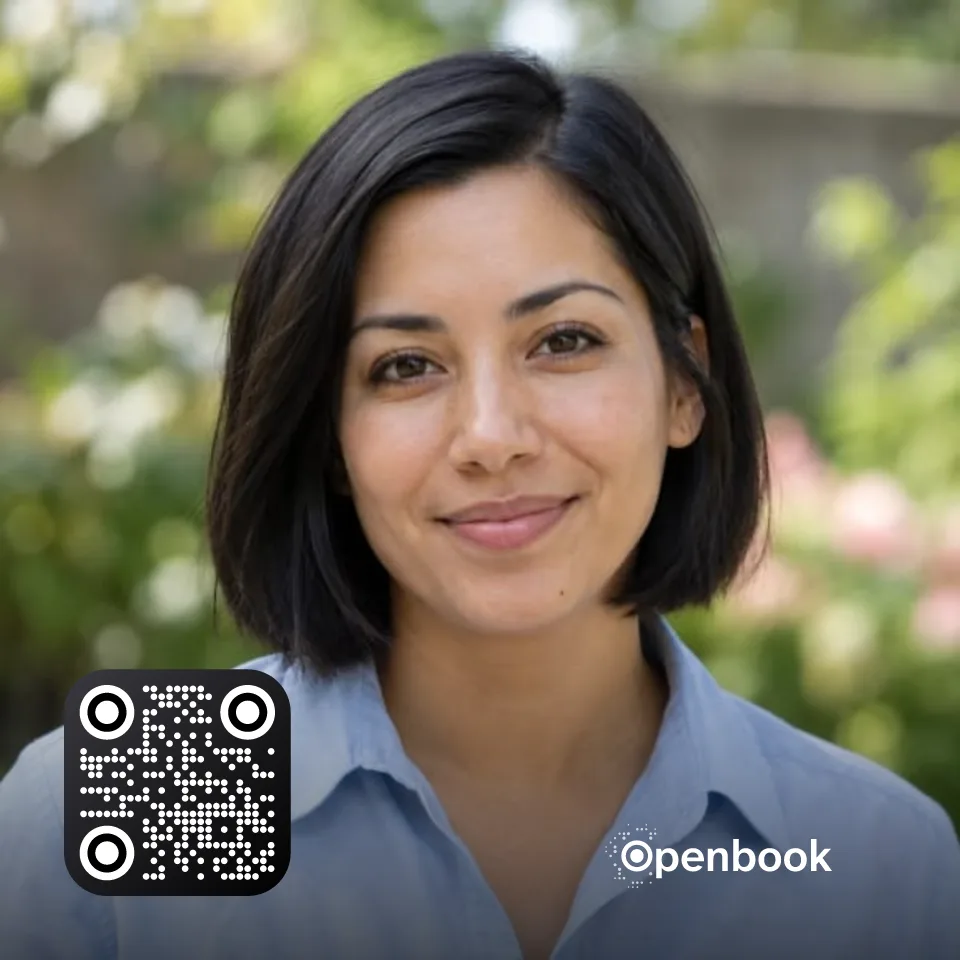
Pick your card’s color on My QR Card and add your photo. Its finish comes to you as people join your groups.
QR Card3 groups
Maya ChenOwner, Maple BakeryTap to add
Book Club: you’re in already
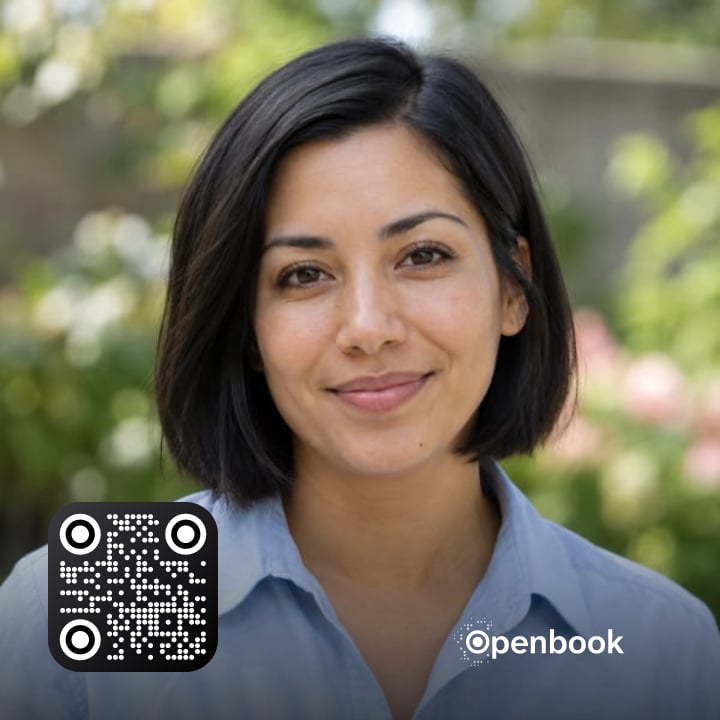
Your photo.It fills your card, with your code small in its corner.
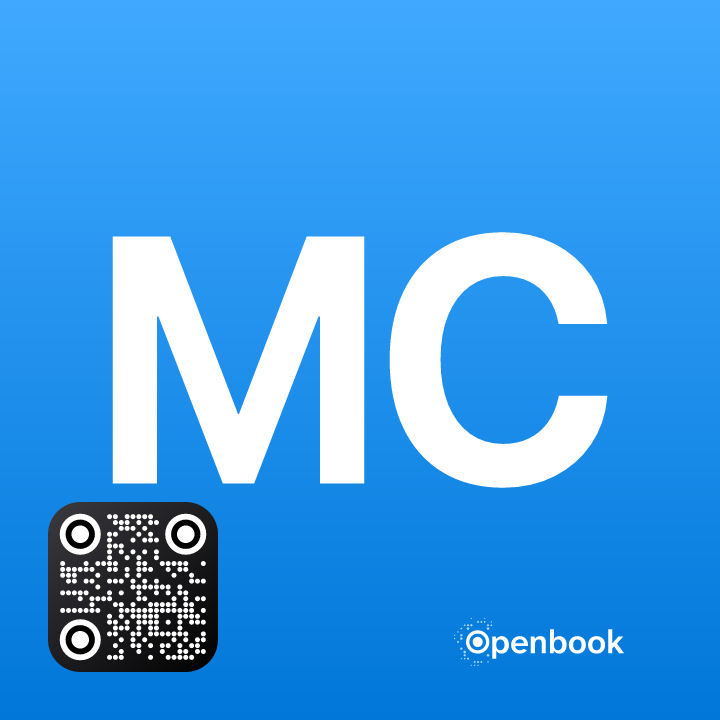
Or your initials.As iPhones draw them, on your color, until you add a photo.

Original photo.Just your photo, with no code, while you pay to join a group or have a Personal plan.
The rest comes to you.
Nobody picks these: your card changes by itself, and every one still scans, on a dark screen or a light one. Silver, Gold and Founding Member are never bought.
SilverOnce 10 people join a directory you own.
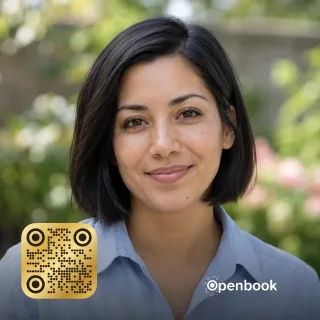
GoldOnce 50 people join a directory you own.
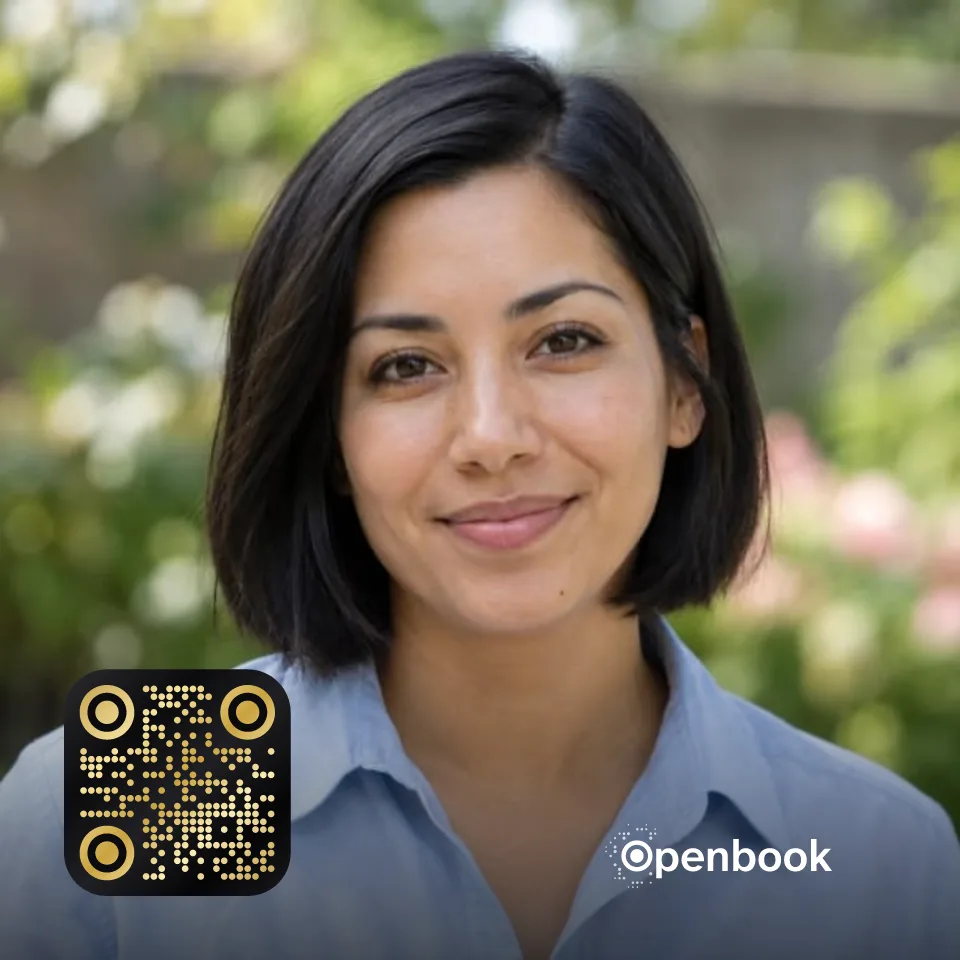
Founding MemberBlack Gold: your photo with your code in polished gold on a black tile in its corner, and signed in, withopenbook.com is always dark for you. Only for whoever brings an email group first: once 5 people join a group you made from it, if it’s the first from that email group to get there. Only 1,000 will ever exist. How to bring yours
- Pick its color: one of eight, or your own, as long as phones can scan it. Until you pick one, it wears a group’s color, your biggest one’s if you own groups or your one group’s if you’re in just one, and blue otherwise.
- Your photo fills your card. Without one, your initials take its place as iPhones draw them, on your color. Your name isn’t on it, since phones show it under your card.
- Your code sits small at its bottom left, on a black tile, with Openbook’s logo at its bottom right.
- It’s one square picture, the same on phones and on the web, and iPhones round its corners.
- Silver and Gold, on your code’s tile, come only to an owner, once 10 or 50 people join a directory they own. Nobody can pick them or buy them.
- A Founding Member card is never bought: it comes to whoever brings an email group first, once 5 people join, and stays yours for good.
- Original photo, just your photo with no code, while you pay to join a group or have a Personal plan.
- Change it from your phone: a new photo you pick for your own card in Contacts takes this one’s place.
- Choose which of your groups it offers.
- Get a new link whenever you like. The old one stops working.
Get your QR Card
Everyone who signs in to Openbook with their mobile number has a QR Card of their own.
Get your QR Card